


Let’s take a moment to install in our Bastion Workstation a few tools. These tools will help us manage remotely many of the solutions that we’re going to implement.
In earlier posts, we install an Active Directory Forest in a Windows Server with No Desktop Experience. That’s the recommended way of implementing a Domain Controller. We can’t RDP our Domain Controller so we have to manage our domain remotely. We are going to do that with three ways in our Bastion Workstation:
- Powershell (Please, get used to scripting)
- RSAT (This is the traditional way to do it)
- Windows Admin Center (New kid in Microsoft town)
To review the installation of Active Directory, check:
Powershell
The traditional Microsoft scripting and command let shell is installed automatically in every Windows 10 or 11 computer. You can even install it in a Linux Workstation. Nonetheless, we’re going to make sure we have the latest version.
In Microsoft Store search for Powershell, the application should show in the list of choices and you can install it from there:
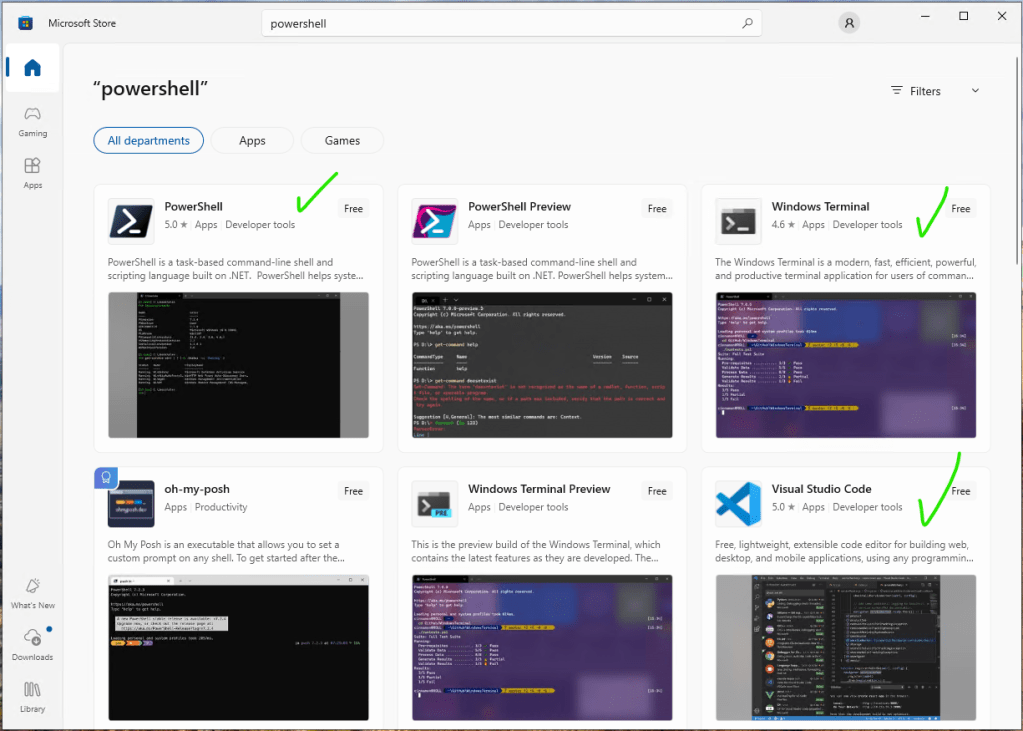
I strongly recommend that you also install Windows Terminal and Visual Studio Code. These two amazing apps will help you a lot with organizing shells and editing text files as scripts.
Once these apps are installed, maybe you’d want to pin Terminal and Visual Studio Code in the task bar. Open Terminal and you should jump to the last version of Powershell:
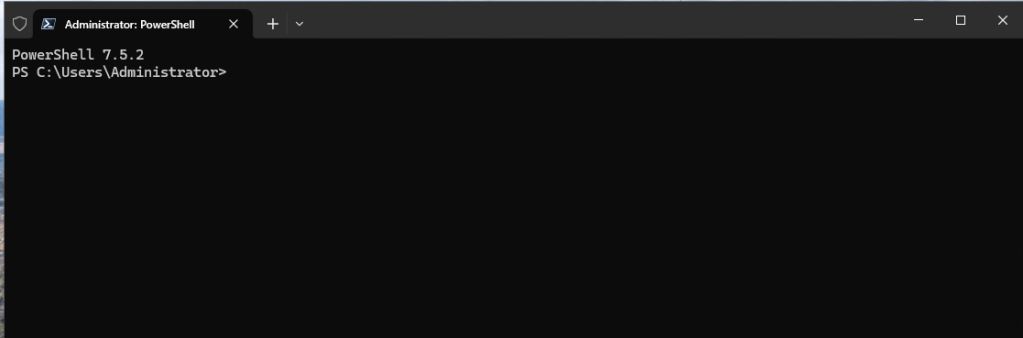
We’re ready for scripting.
RSAT
Remote Server Administration Tools are the traditional graphical consoles installed on Window to remotely manage many server features. First, let’s see which consoles we have available for installation. Run the follwing commands in Powershell:
Import-Module DISM -UseWindowsPowerShell
Get-WindowsCapability -Name RSAT* -Online | Select-Object -Property DisplayName, State
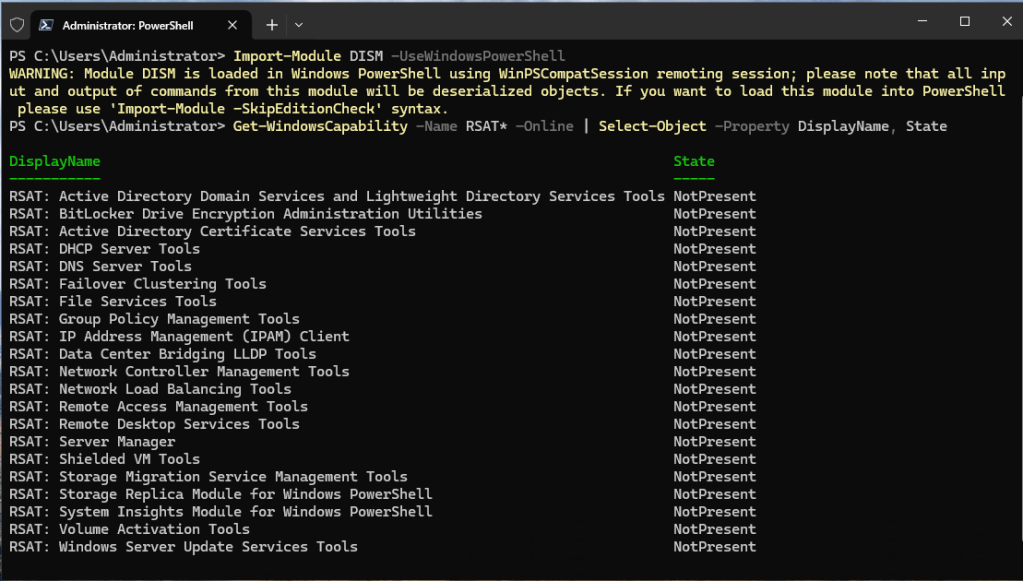
You should see that no RSAT tools are installed. You can install only the tools you need. Yet, life is short to figure out here which tools we’re going to use. So, we’re going to install all tools on one stroke. Run this command:
Get-WindowsCapability -Name RSAT* -Online | Add-WindowsCapability -Online
It’s going to take a while but all our tools we’ll be ready to play with. At the end, you can run again the next command to check the tools installed correctly:
Get-WindowsCapability -Name RSAT* -Online | Select-Object -Property DisplayName, State
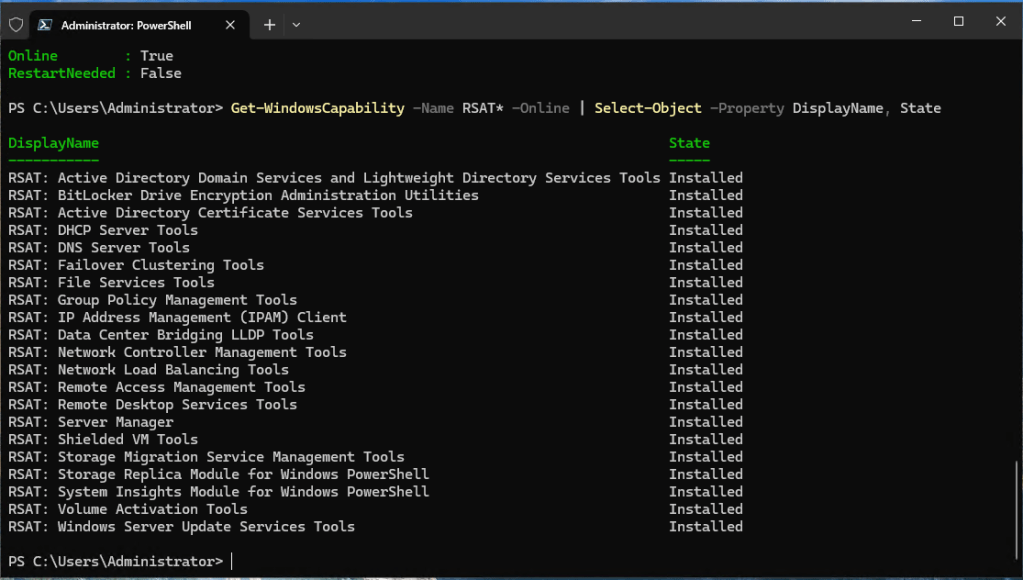
To manage Active Directory, these are the tools we’re interested:
- Active Directory Domain Services
- DNS Server Tools
- Group Policy Management Tools
- Server Manager
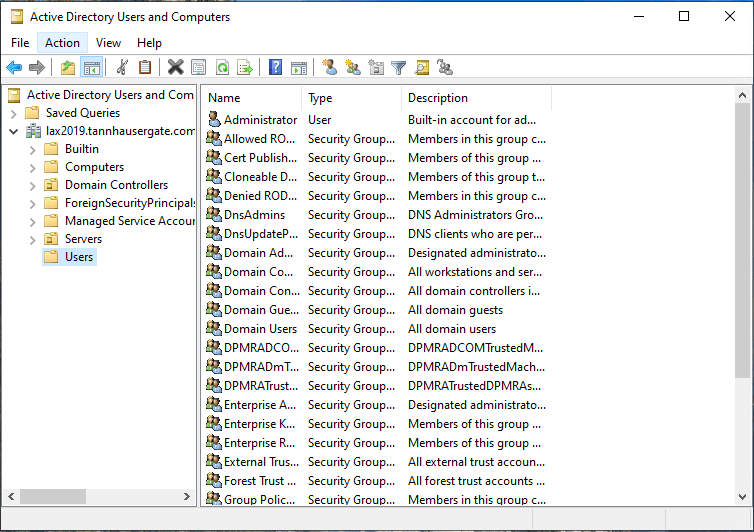
In Windows 10 Search Box, type Users and Computers. You should see the Console in the list of results. Open the Console. Now you’re managing Active Directory remotely:
Windows Admin Center
WAC has been around since Windows Server 2019. It’s an Azure like Web Console to manage Hybrid Infrastructure. It is mainly used to integrate on-premise administration with an Azure subscription. Many new characteristics can be administered only from this console. Features like Storage Migration or Software Defined Network (Preview) are available. Yet, it does a decent job administering remotely all our Windows Servers. It can be installed on any Windows 10 or 11 Workstation and Servers as well.
You can download WAC version 2410 from the Microsoft site:
Windows Admin Center | Microsoft Evaluation Center
Once downloaded, run the installation:
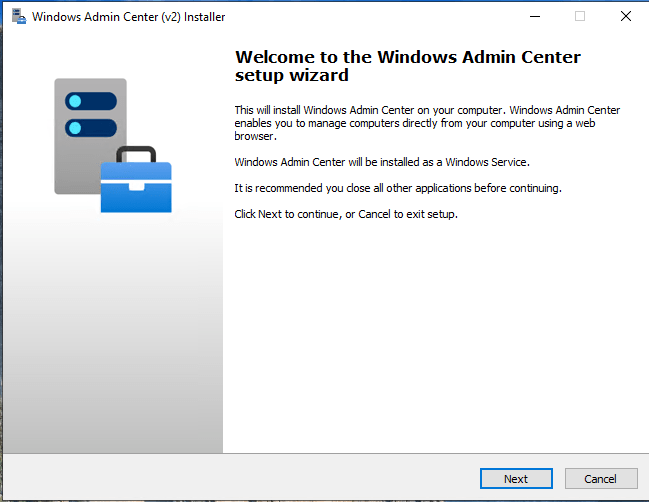
Click Next. Accept License Terms and click Next:

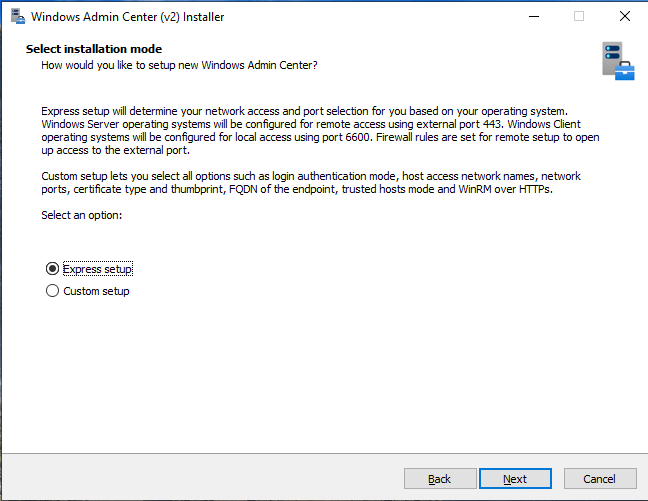
Choose Express setup. Click Next:
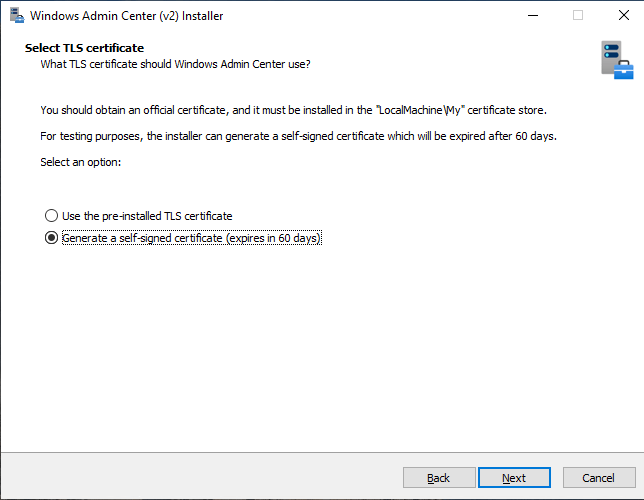
We will not deal now with a TLS certificate. If we’re planning to use WAC, it should be on a dedicated production server called gateway. This requires implementing it with a valid certificate. In our bastion, we can live 60 days with the self signed certificate. After 60 days, we’ll run the installer again to get a new 60 days self signed certificate. Click Next:
Accept update automatically. Click Next:
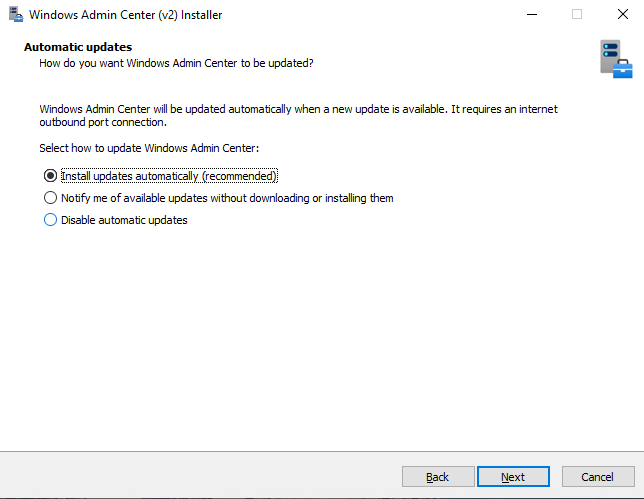
Accept defaults. Click Next:

Accept defaults. Click Next:
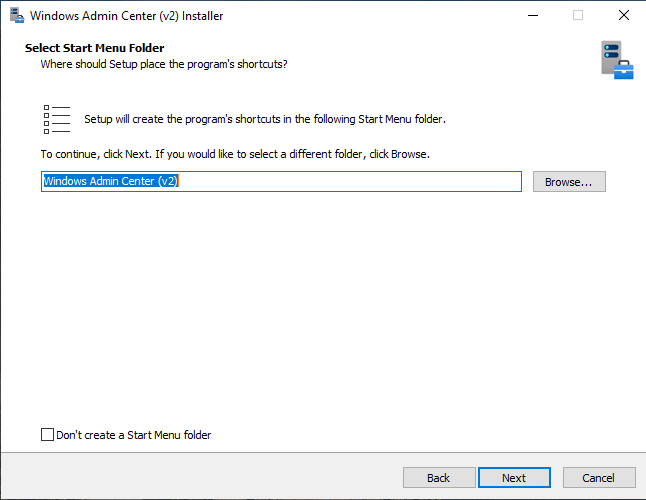
Review the information and click Next to finish the installation.
Once WAC is installed, launch it from the Desktop Icon. Login as domain admin. The main screen is shown, wait until all extensions finish updating.
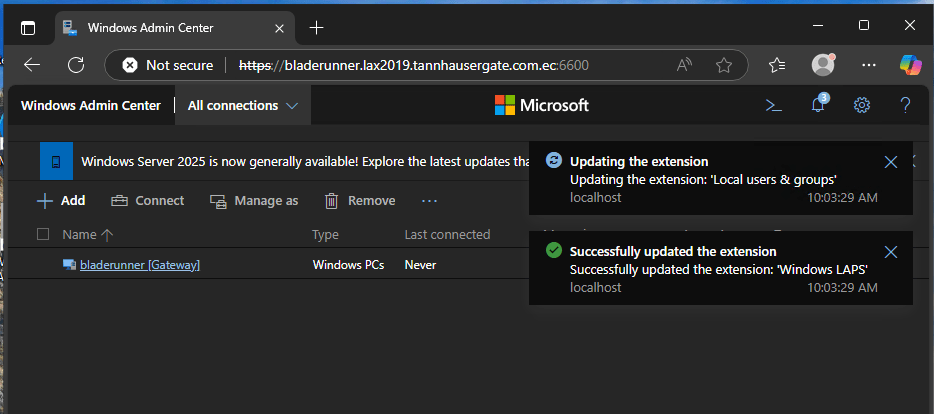
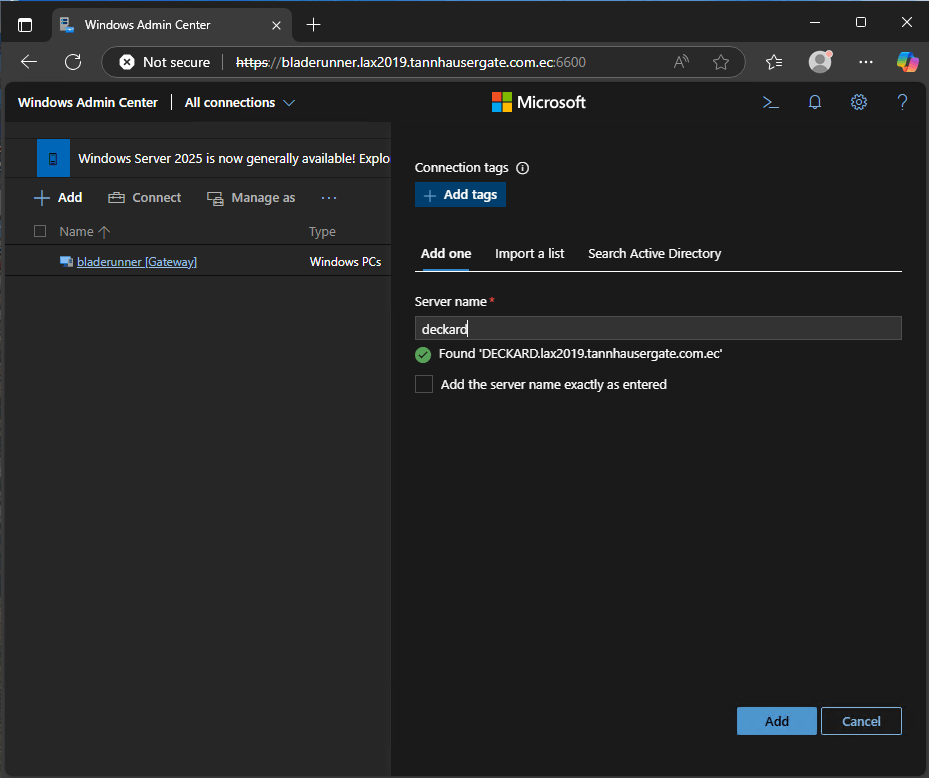
Click + Add to add our Domain Controller. In Servers section, click Add and type your domain controller name. Your server FQDN should automatically be found:
The server should add to the list of administered servers. Click your domain controller:
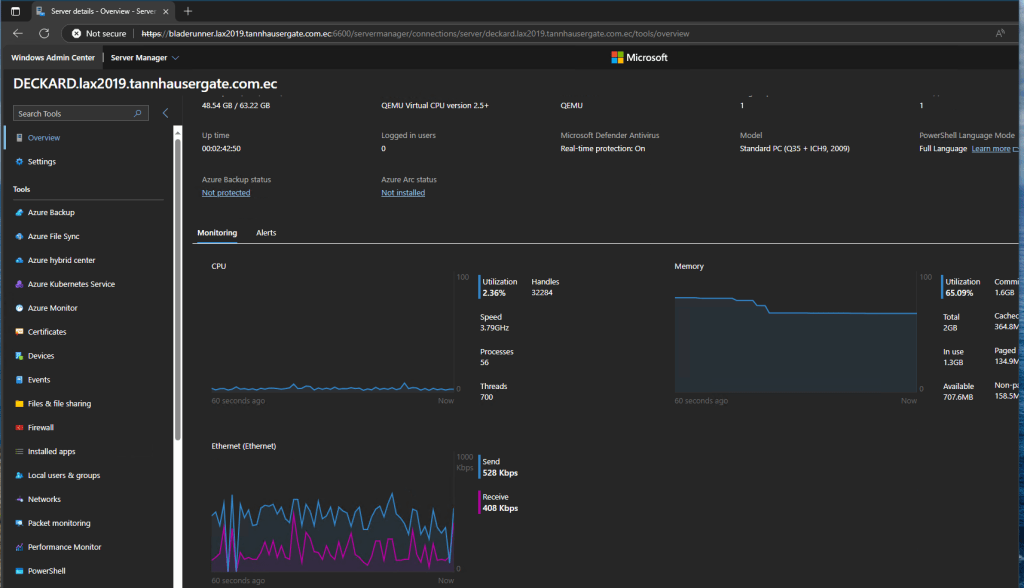
Now you’re remotely administering your server in an Azure style console. Check all the things you can do in the left menu. Try updating your server:
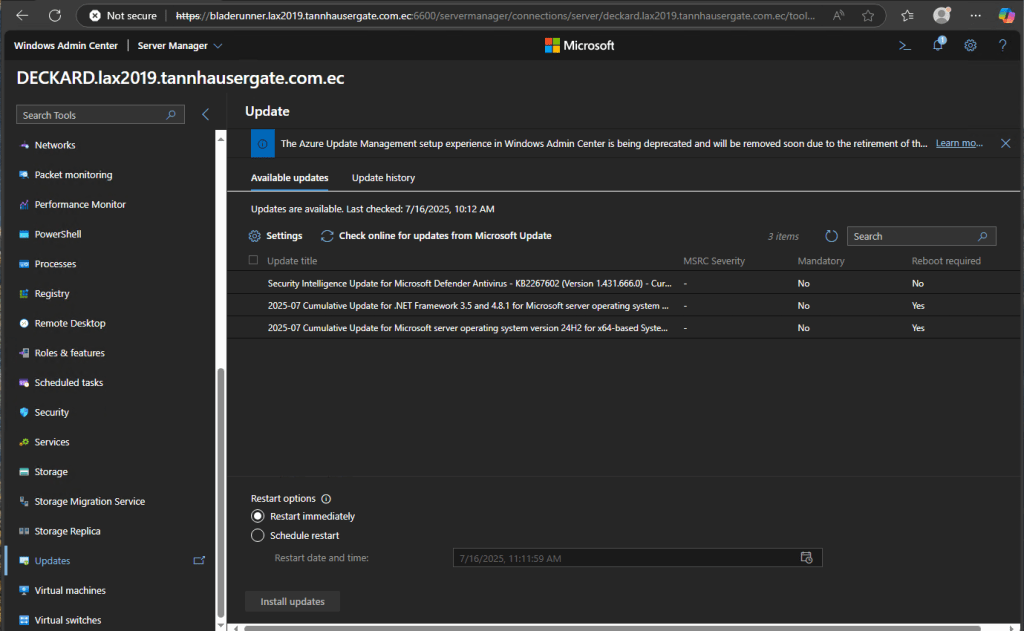
That’s it. Now you can remotely manage your Windows Servers from Bastion Workstation.
On the next post, we’ll create our first Hyper-V Cluster.
Thanks, don’t forget to leave your comments and suggestions.
Have fun!

 RacerX Steppenwolf
Leave a reply to Create a Shared Storage Hyper-V Cluster: Complete Installation – RacerX Steppenwolf Cancel reply