

In this post we are going to set up high availability for two OPNsense firewalls. Our firewalls are installed as VMs in two separate Proxmox nodes in our Lab. All our VMs in our Cluster use OPNsense to connect to the outside world. If one firewall is down, the other is available.
OPNsense uses a schema of master and backup to set up HA. It uses a protocol called CARP to exchange status and configuration. We need a separate network interface dedicated to CARP. We’ll call this interface pfSync. We also are going to need a third IP address on each network we want to set up as HA. We’ll call this third IP address VIP (Virtual IP).
Note: Keep this in mind because in production environments you will need three public IP addresses.
To check how to install OPNsense in Proxmox:
Note: CARP needs MAC address spoofing on the network interfaces. In Proxmox, you must turn off the MAC filter for the OPNsense VMs. Go to Datacenter, Node, <VM name>, Firewall, Options, MAC filtering. Select No:

This is the configuration of our two firewalls:
Note: I use black and white templates to clearly differentiate firewalls.
OPNsense 1 (master) – Black Template
| Interface | Identifier | IP Address |
| LAN | lan | 192.168.30.69/24 |
| WAN | wan | 192.168.100.69/24 |
| pfSync | opt1 | 10.130.1.69/24 |
OPNsense 2 (backup) – White Template
| Interface | Identifier | IP Address |
| LAN | lan | 192.168.30.76/24 |
| WAN | wan | 192.168.100.76/24 |
| pfSync | opt1 | 10.130.1.76/24 |
Note: OPNsense HA needs all identifiers to be the same on both nodes.
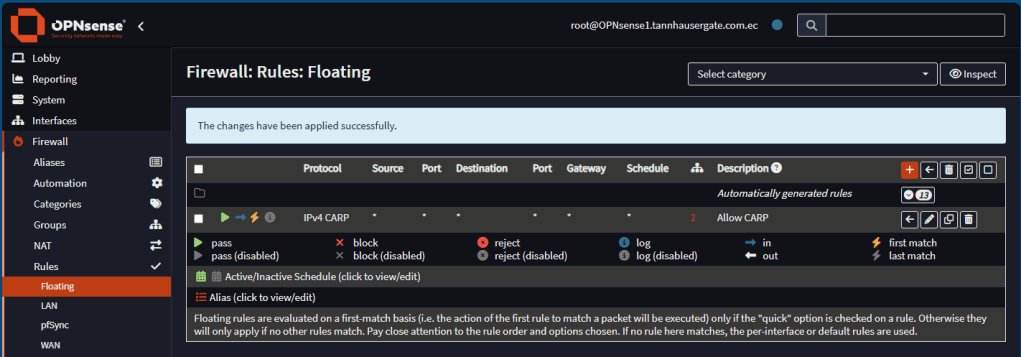
First, lets set up firewall rules on all our interfaces. On the master firewall go to Firewall, Rules, Floating. Add a rule to allow everything for CARP protocol for WAN and LAN interfaces (if you have more interfaces to protect, make sure to select them all):
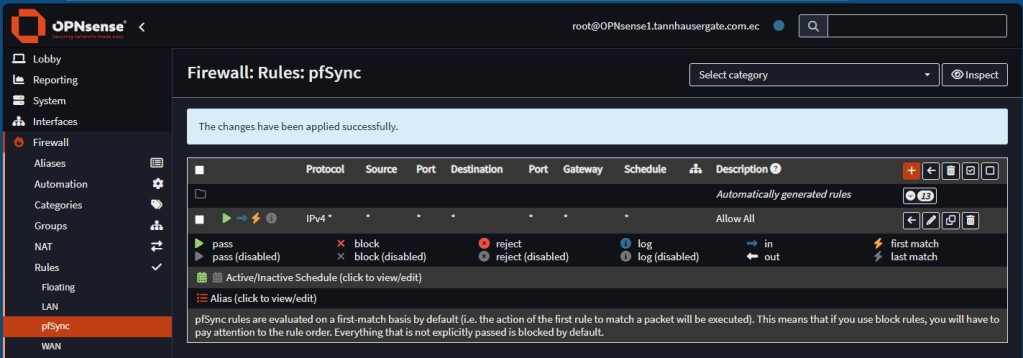
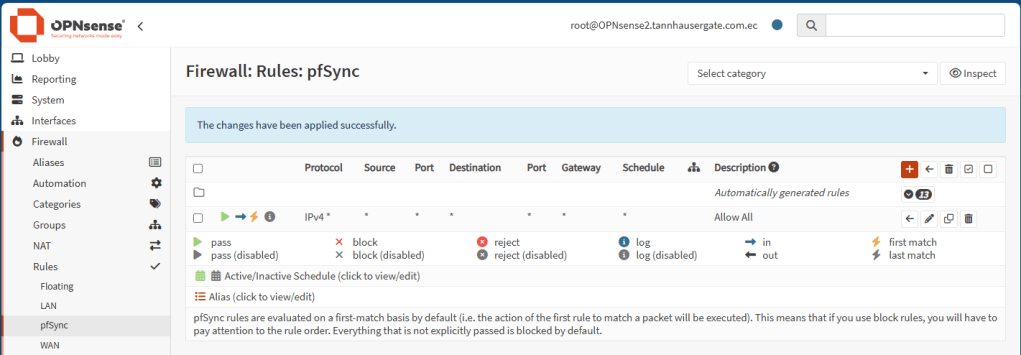
Go to Firewall, Rules, pfSync. Add a rule here for anything:
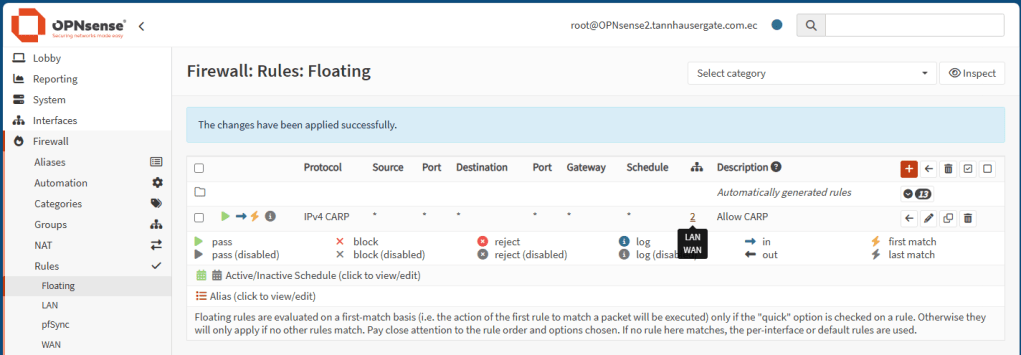
Now repeat the same rules on the backup firewall:
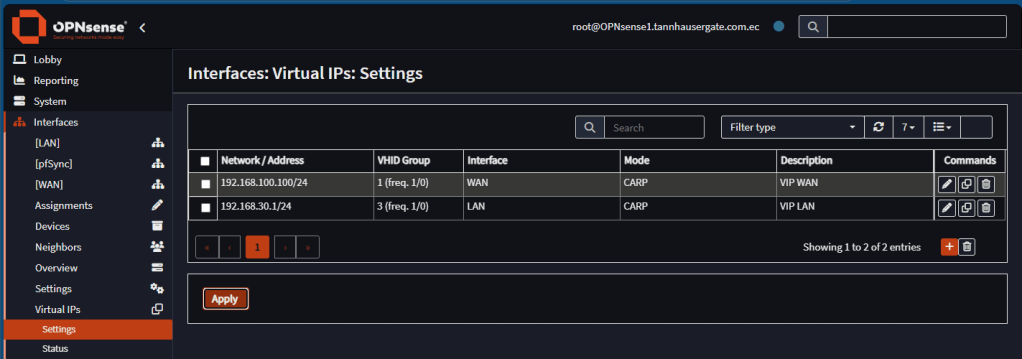
Now let’s set up the Virtual IPs. On the master firewall, go to Interfaces, Virtual IPs, Settings and add two virtual IPs:
| Type | Carp |
| Interface | WAN |
| Network / Address | 192.168.100.100/24 |
| Virtual password | Anything you want |
| VHID Group | 1 (can be any unique group number) |
| Advertising Frequency | Base 1 / Skew 0 |
| Description | VIP WAN |
| Type | Carp |
| Interface | LAN |
| Network / Address | 192.168.30.1/24 |
| Virtual password | Anything you want |
| VHID Group | 3 (can be any unique group number) |
| Advertising Frequency | Base 1 / Skew 0 |
| Description | VIP WAN |
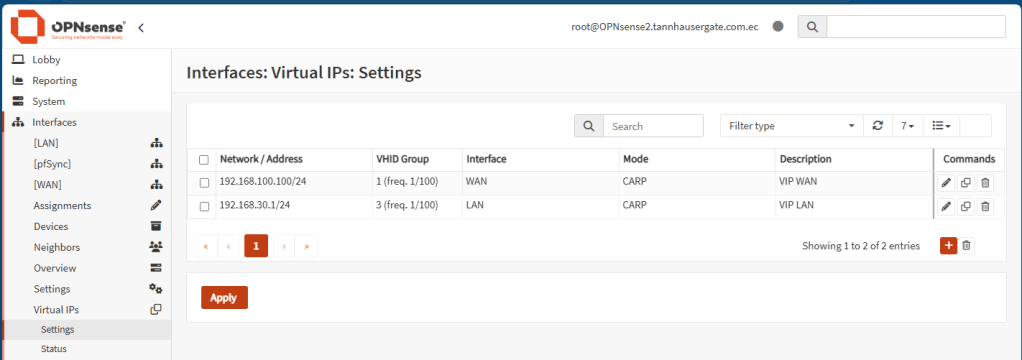
Now go to the backup firewall and create the same Virtual IPs, but make sure you change the Skew value to something higher, as 100:
Now let’s check NAT Outbound. On the master firewall, go to Firewall, NAT, Outbound and select Manual outbound. Create a rule for the WAN interface to NAT all traffic to public IP addresses to the new virtual IP created early:
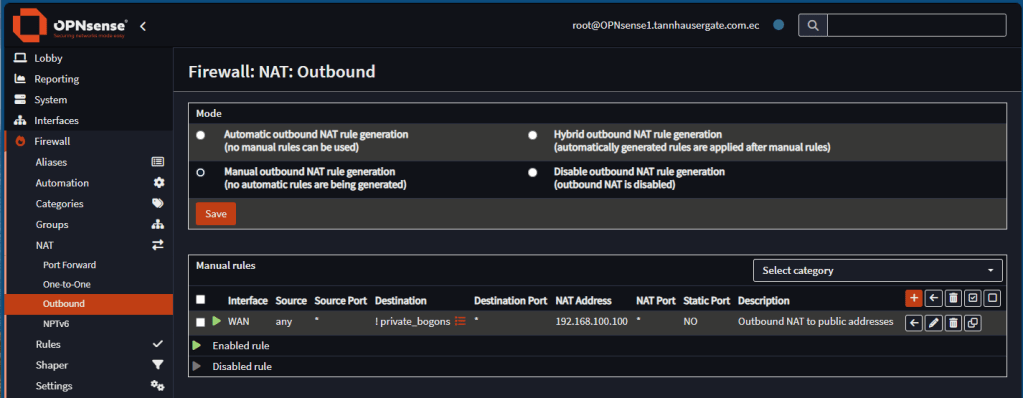
Note: If your firewall uses public IP addresses in the WAN interface, you can set destination as any.
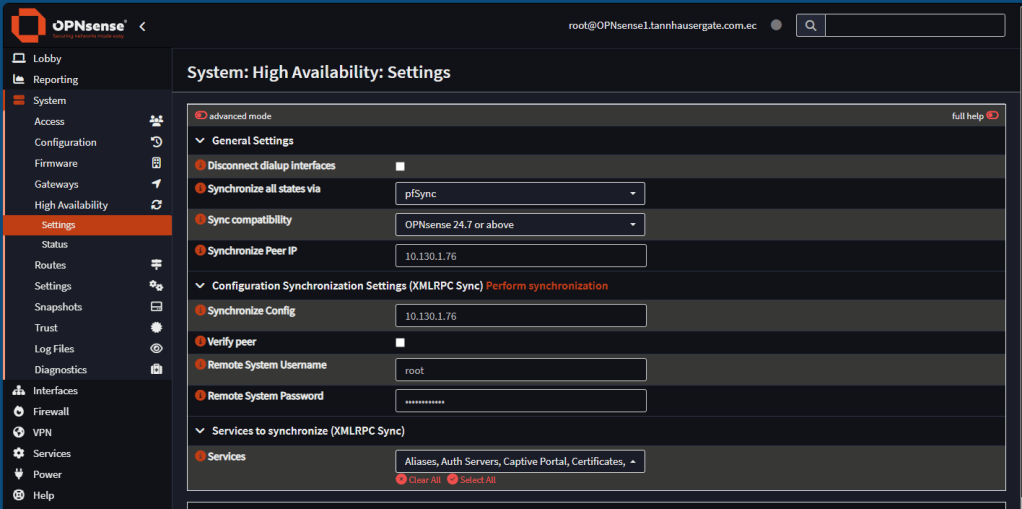
Now we are ready to set HA. On the master firewall go to System, HA, Settings. Set up the next:
| Setting | Value |
| Synchronize all states via | pfSync (select the correct interface) |
| Synchronize Peer IP | 10.130.1.76 (the backup firewall ip address on pfSync) |
| Synchronize Config | 10.130.1.76 (the backup firewall ip address on pfSync) |
| Remote System Username | root (or correct user) |
| Remote System Password | <root password> |
| Services | Select All (For testing purposes) |
Note: On production environments, you can be selective on what services to synchronize.
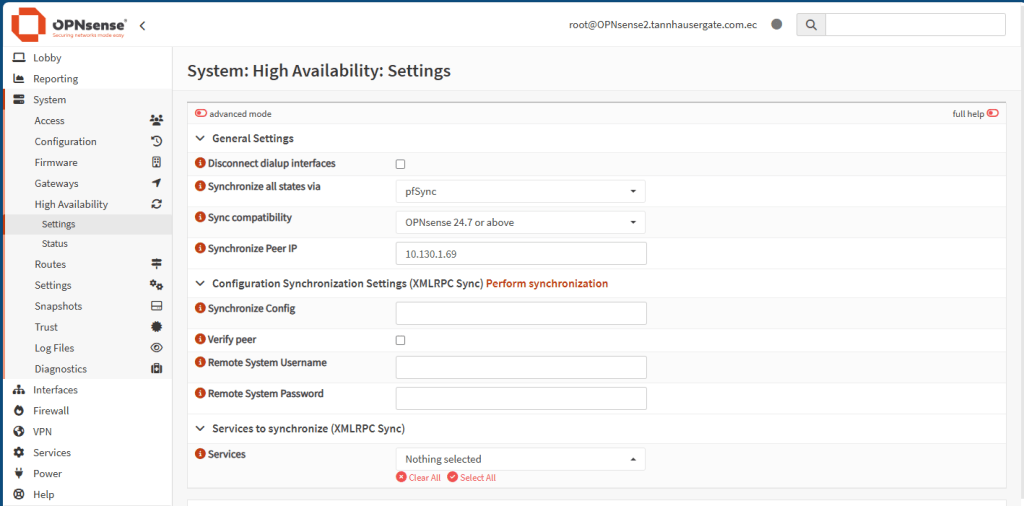
Now go to the backup firewall and only set up the next:
| Setting | Value |
| Synchronize all states via | pfSync (select the correct interface) |
| Synchronize Peer IP | 10.130.1.69 (the master firewall ip address on pfSync) |
Leave the rest as blank.
Finally restart both firewalls.
Your firewalls are now redundant. You can shutdown master firewall and backup firewall will take over.
On master, go to Interfaces, Virtual IPs, Status. In the Addresses tab, you should see both Virtual IPs as master:
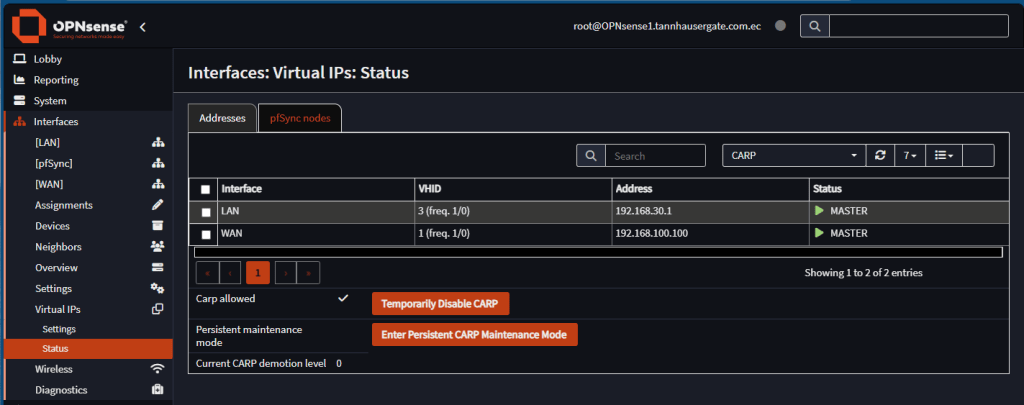
On backup firewall, you should see the Virtual IPs as backup:

- Temporarily Disable CARP: Use this toggle to stop synchronization a few moments. This is mainly used to add, edit or remove Virtual IPs. You need to duplicate the configuration done on both nodes manually while CARP is disabled.
- Enter Persistent CARP Maintenance Mode: Use this toggle to fully turn off HA. If switched on master, backup firewall will take over. This is mainly used to carry out firewalls updates one by one.
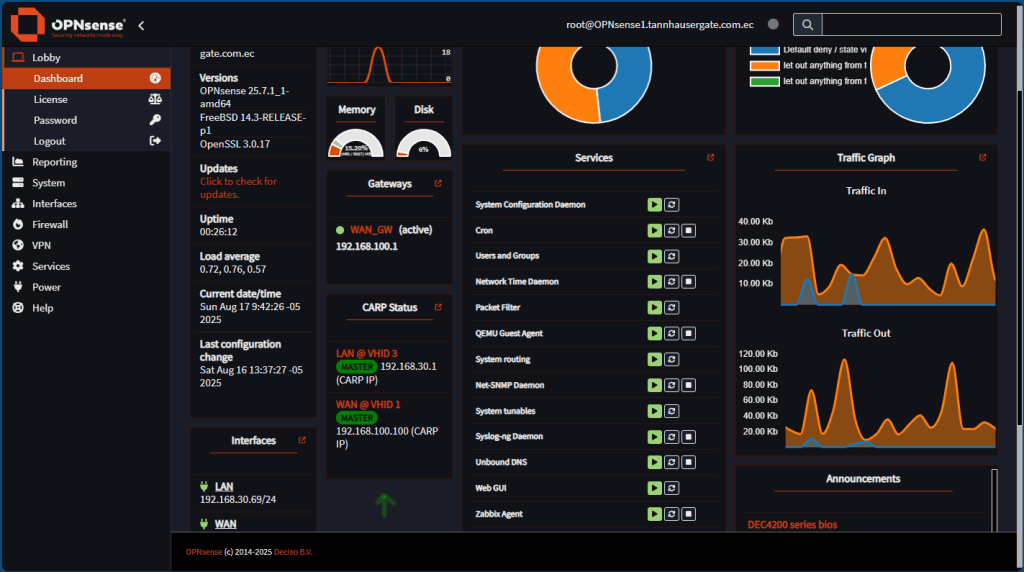
Tip: On main dashboard, you can add the CARP widget to your main page:
That’s it. Now you have a set of OPNsense firewalls which are redundant.
Don’t forget to leave your comments and suggestions.
Have Fun!


Leave a Reply