

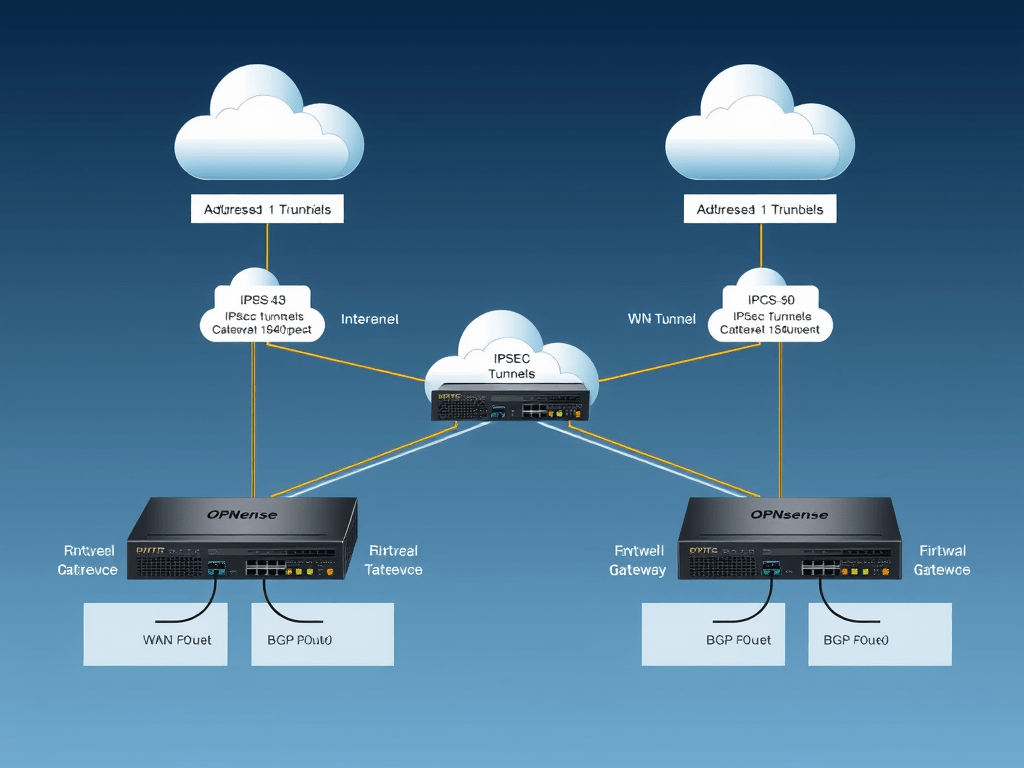
We are going to set up two OPNsense firewalls in the next two posts. Each will have two WAN connections. This setup simulates a real scenario of two Sites and two ISPs at each site. On these two firewalls, we are going to set up 4 IPsec tunnels and BGP protocol for fail over. Thus, we’ll recreate a full redundant interconnection between sites, with one ISP per site tolerance.
This is the full topology for this lab:

Note: Our Firewalls in both sites and our Routers for both ISPs will be OPNsense
First, we will create the WAN topology. Then, we will set it up with our routers. We’ll use OSPF protocol in OPNsense to interchange all networks in our topology.
We install and set up our regular OPNsense VMs with four network adapters each as shown in the image above.
To check the installation of OPNsense in Proxmox:
The configuration of our routers is as follows:
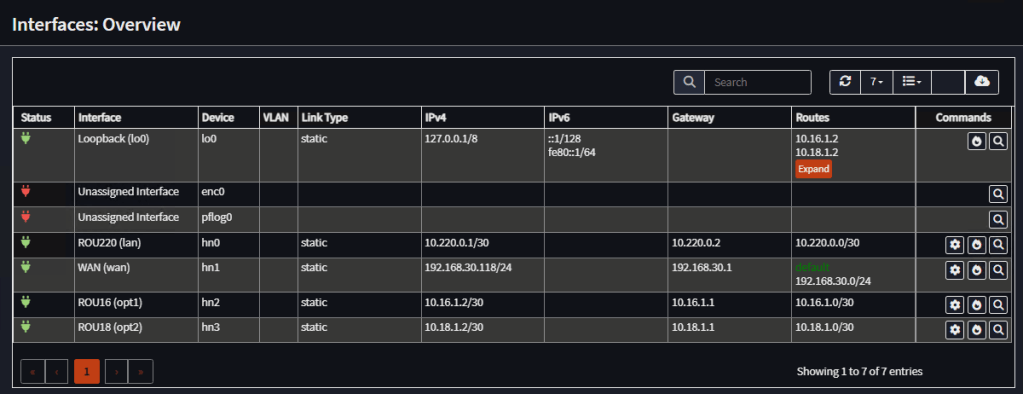
Router 1 Interfaces
| Interface | Identifier | IP Address |
| ROU220 | lan | 10.220.0.1/30 |
| ROU16 | opt1 | 10.16.1.2/30 |
| ROU18 | opt2 | 10.18.1.2/30 |
| WAN | wan | 192.168.30.118/24 |
Note: Block private networks and Block bogon networks, disabled (not recommended on interfaces with public IP addresses)
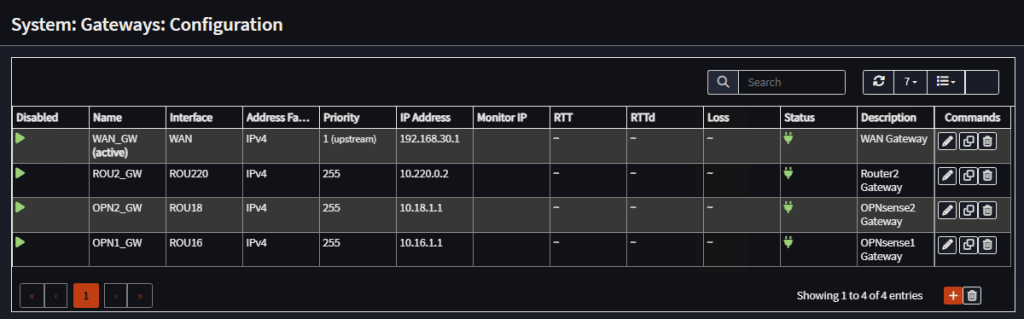
Router 1 Gateways
| Name | Interface | Priority | IP Address |
| WAN_GW | WAN | 1 (upstream) | 192.168.30.1 |
| ROU2_GW | ROU220 | 255 | 10.220.0.2 |
| OPN2_GW | ROU18 | 255 | 10.18.1.1 |
| OPN1_GW | ROU16 | 255 | 10.16.1.1 |
Note: Gateway Monitoring Disabled
Note: No static routes needed, as we use OSPF for routes interchage.
Router 1 Firewall Rules
Go to Firewall, Rules, Floating and add an any-any rule:
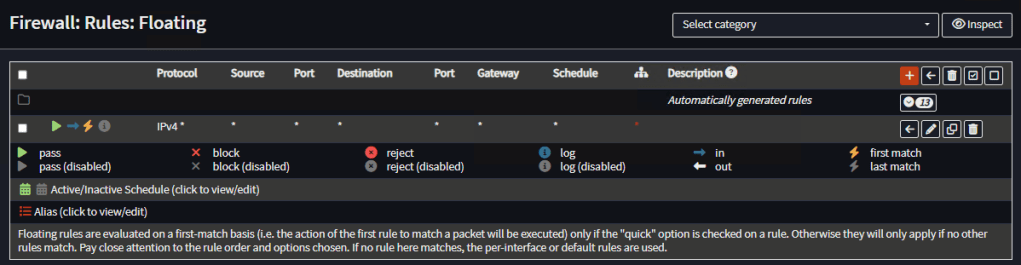
Make sure there are no rules for the individual interfaces.
Go to Firewall, NAT, Outbound, switch to manual and create a rule to public destinations on the WAN interface:
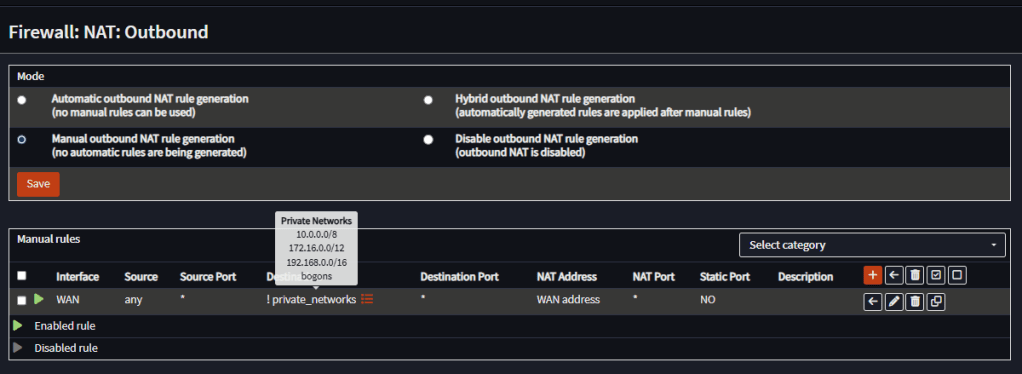
Note: on a real WAN scenario with public IP Addresses on all interfaces, we should turn off outbound NAT.
Router 2 Interfaces
| Interface | Identifier | IP Address |
| ROU220 | lan | 10.220.0.2/30 |
| ROU16 | opt1 | 10.16.2.2/30 |
| ROU18 | opt2 | 10.18.2.2/30 |
| WAN | wan | 192.168.30.119/24 |
Note: Block private networks and Block bogon networks, disabled
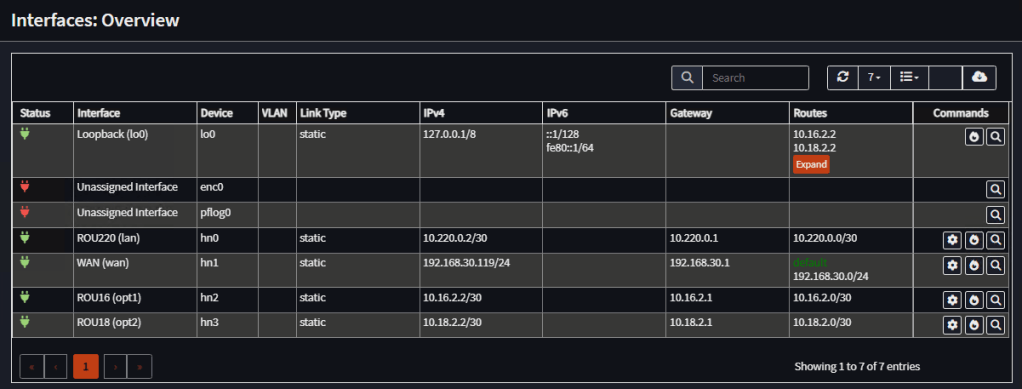
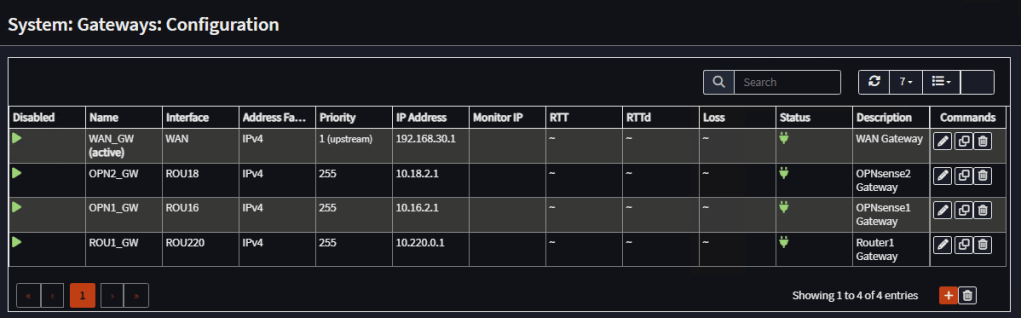
Router 2 Gateways
| Name | Interface | Priority | IP Address |
| WAN_GW | WAN | 1 (upstream) | 192.168.30.1 |
| ROU1_GW | ROU220 | 255 | 10.220.0.1 |
| OPN2_GW | ROU18 | 255 | 10.18.2.1 |
| OPN1_GW | ROU16 | 255 | 10.16.2.1 |
Note: Gateway Monitoring Disabled
Note: No static routes needed, as we use OSPF for routes interchage.
Router 2 Firewall Rules
Same as Router 1
Note: On both routers Default Gateway, which is 192.168.30.1, is also configured as DNS Server.
Routing Configuration
On both routers go to System, Firmware, Plugins and install os-frr plug-in.
Go to Routing, OSPF and Enable it:
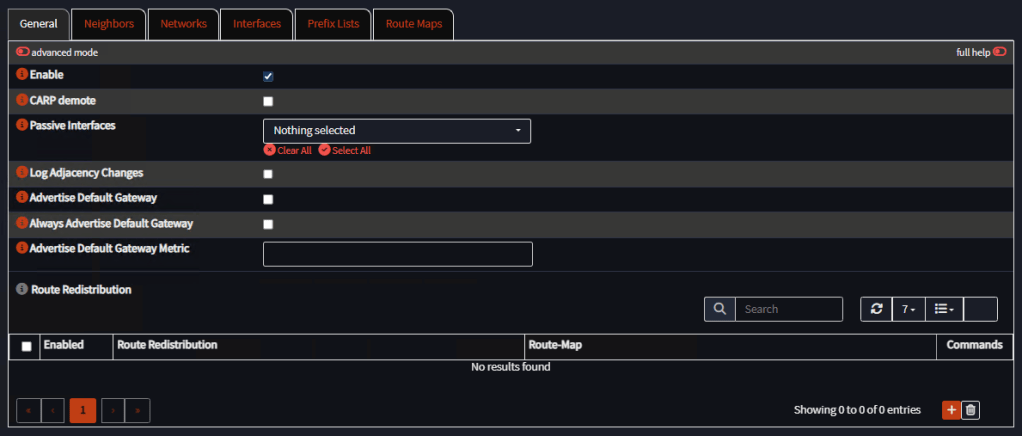
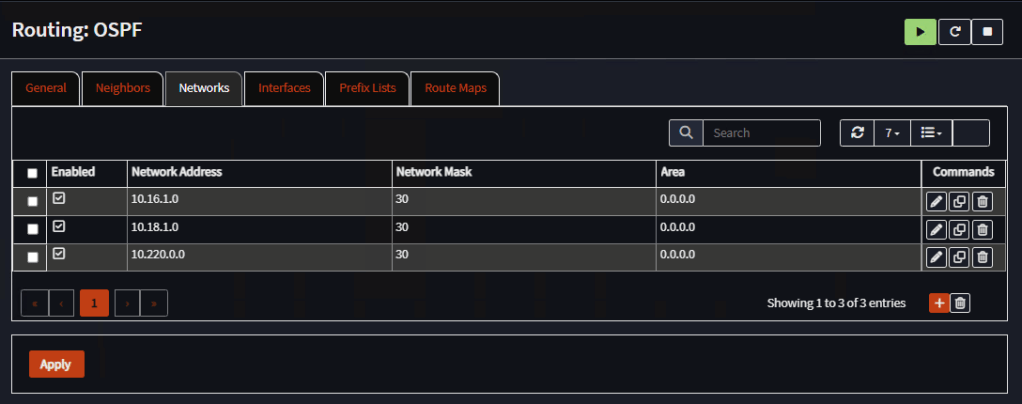
Go to Networks and add all networks directly attached to the router except WAN network. Use area 0.0.0.0 for all, leave the rest as default:
Router 1
Router 2

Go to Interfaces and add all interfaces, except WAN. Use area 0.0.0.0 for all, leave the rest as default:

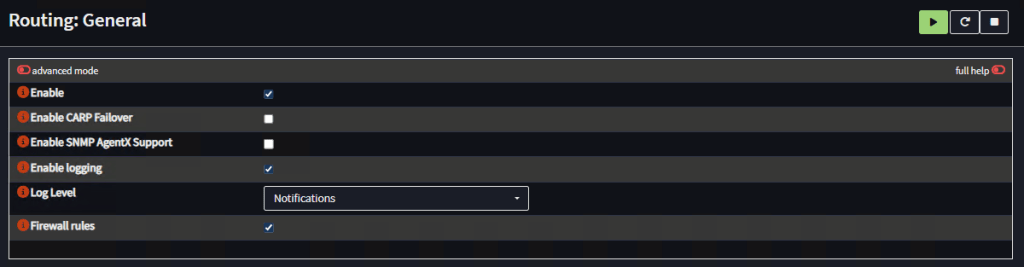
Now, go to Routing, General and Enable it:
Restart both routers.
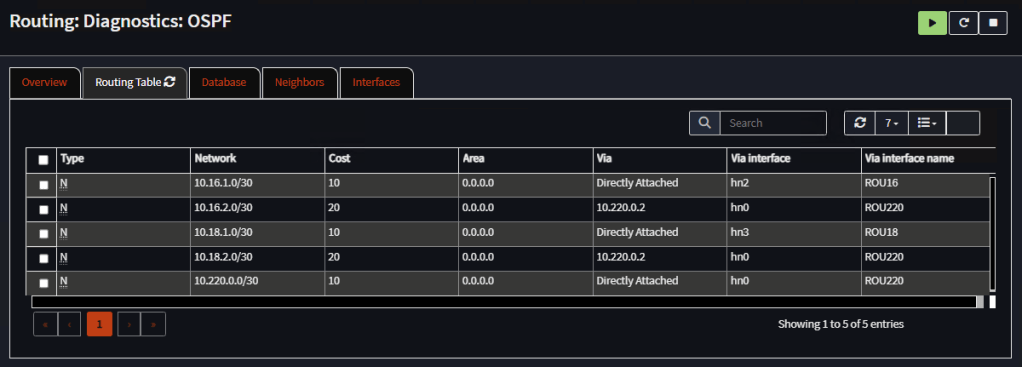
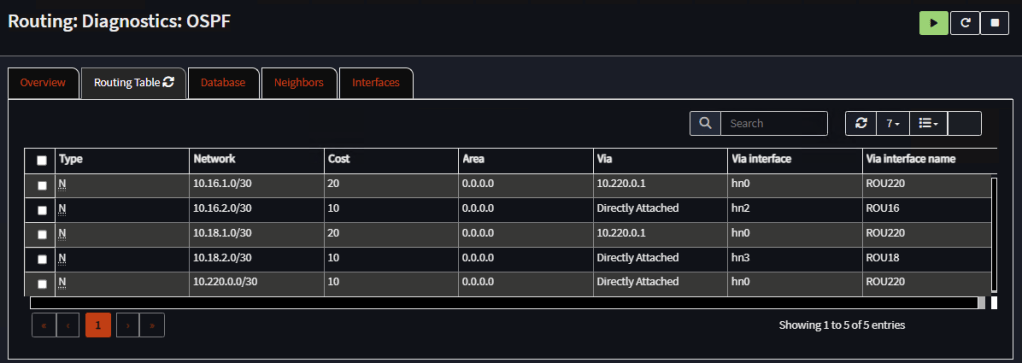
Go to Routing, Diagnostics, OSPF, Routing Table and confirm both routers have exchanged routes:
Router 1
Router 2
Also, go to System, Routes, Status, and confirm the routes, not directly attached to each router, are listed correctly.
That’s it, the first part of this lab is completed and both routers are up and running. In the next post, we will set up our Site Firewalls to use two ISP connections each. We will also create four IPsec VPN tunnels and BGP routing:
Have Fun!

 RacerX Steppenwolf
Leave a reply to Configure Redundant OPNsense IPsec Tunnels with BGP Between Two Sites (Part 2) – RacerX Steppenwolf Cancel reply